WordPress Client Report Template for Agencies (Free)

WordPress agencies lose an average of 15–20% of care plan clients every year. The number-one reason? Clients don't see the value they're paying for. A well-structured WordPress client report template is the fix — it turns invisible maintenance work into visible proof that keeps clients renewing month after month.
This post breaks down the exact sections your client report template needs, how to customize it for different client types, and why white-labeling is non-negotiable. By the end, you'll have a complete framework for building reports that retain clients and create natural upsell opportunities.
In this post:
Why Most Client Report Templates Fall Short
The default client report at most agencies is either a wall of technical data or a brief email that says "everything's fine." Both fail for the same reason: they're built for the agency, not the client.
A site owner running a local bakery doesn't care that you updated Query Monitor from 3.15.0 to 3.16.1. They care that their website was online, fast, and secure — and that you caught something before it became a problem.
The gap between what agencies report and what clients value is where churn lives. Research consistently shows that customers who feel indifferent about a service are the most likely to leave. Care plan clients are no different. Your report is either building a relationship or it's background noise they eventually cancel.
Agencies that send structured, branded monthly reports retain clients at significantly higher rates than those who rely on ad-hoc updates. The template itself isn't the product — it's the retention engine. To understand more about why clients stop reading reports, see our deep dive on engagement.
The 7 Sections Every WordPress Client Report Needs
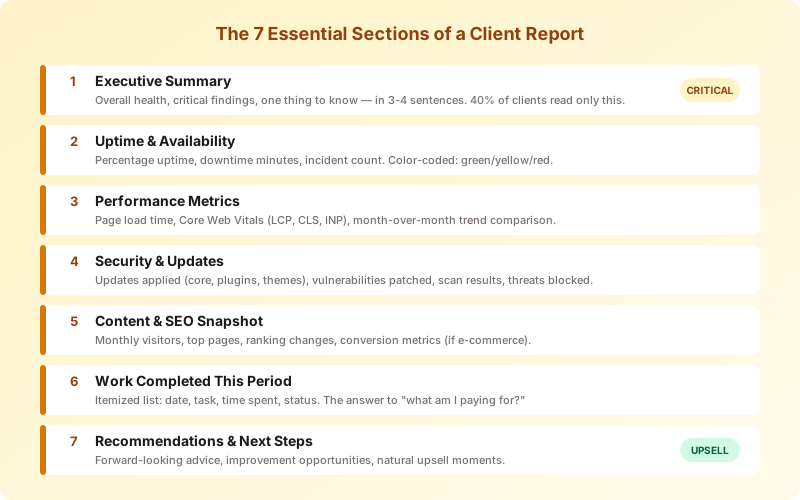
A complete WordPress client report template covers seven areas. Each section has a specific job: either proving value, building trust, or creating an upsell opportunity.
1. Executive Summary
This is the single most important section. It goes first because roughly 40% of clients will only read this part. Write it in plain language — no jargon, no acronyms, no code references.
A good executive summary answers three questions in three to four sentences: What was the overall health of the site this period? Was anything critical caught or fixed? What's the one thing to know going forward?
| Approach | Example |
|---|---|
| Bad (technical dump) | Completed 14 plugin updates, 2 core updates, resolved 1 PHP warning, uptime 99.7%. |
| Good (client-focused) | Your site was online 99.7% of the month with no security incidents. We applied 16 software updates that patched three known vulnerabilities before they could be exploited. Performance improved — your pages now load in 1.8 seconds, down from 2.1 last month. |
2. Uptime & Availability
Display uptime as a percentage with a visual indicator. Green for 99.5%+, yellow for 98–99.5%, red for below 98%. Include total downtime in minutes and the number of incidents.
Clients understand uptime intuitively. "Your site was online 99.9% of the time" is the kind of metric that makes them feel confident about their investment. If there was downtime, explain what caused it and what you did to resolve it.
3. Performance Metrics
Include page load time (in seconds, not milliseconds), Core Web Vitals scores (LCP, CLS, INP), and a month-over-month comparison. Clients don't need to understand what Largest Contentful Paint means — they need to see a green checkmark and know their site is fast.
Present this as a trend line. Show improvement over time to demonstrate ongoing value. A performance metric that stays flat still tells a story: "We're maintaining the speed you're paying for."
4. Security & Updates
List what was updated: WordPress core, plugins, themes. Show the total count and highlight any security patches. If you caught a vulnerability or blocked a threat, call it out explicitly — this is where you prove your proactive value.
Include a security scan summary: number of scans run, threats detected, threats resolved. Even "zero threats detected" is valuable information — it means your security setup is working.
5. Content & SEO Snapshot
Traffic and search visibility data, if available. Monthly visitors, top-performing pages, any significant ranking changes. For e-commerce clients, include conversion metrics.
This section builds a bridge between maintenance and business outcomes. It helps clients see that a well-maintained site isn't just "running" — it's performing.
6. Work Completed This Period
A clear list of everything you did beyond automated tasks. Custom development hours, content updates, troubleshooting sessions, consultation calls. This is your itemized receipt.
Format it as a simple table: Date, Task, Time Spent, Status. Keep it factual. This section answers the question every client eventually asks: "What exactly am I paying for?"
7. Recommendations & Next Steps
Close the report by looking forward, not backward. What should the client consider for next month? A plugin that needs replacing? A performance optimization opportunity? An upgrade to the next care plan tier?
This section is where upsells happen naturally. You're not selling — you're advising. When you recommend a security audit or a performance overhaul, you're demonstrating expertise and creating demand for additional services.
How to Customize Your Template by Client Type
A one-size-fits-all template works for your first five clients. After that, you need variations. Different businesses need different metrics emphasized — and the emphasis changes what the client perceives as valuable.
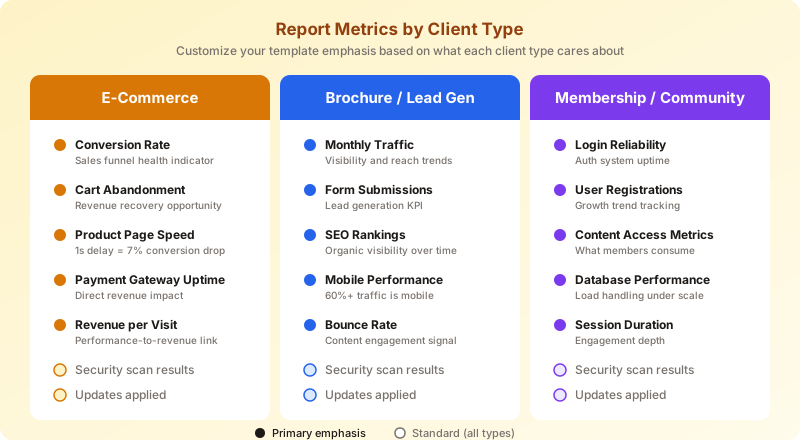
E-commerce sites care about conversion rates, cart abandonment, product page speed, and payment gateway uptime. Their report should lead with revenue-impacting metrics. A 1-second delay in page load can reduce conversions by 7% — that's the language that keeps WooCommerce clients engaged.
Brochure and lead-generation sites care about traffic, contact form submissions, SEO rankings, and mobile performance. Their report should focus on visibility and lead flow. Show them the connection between your maintenance work and their Google rankings.
Membership and community sites care about login reliability, user registration trends, content access metrics, and database performance under load. Their report should emphasize member experience and growth trends.
The structure stays the same — seven sections — but the data emphasis shifts. Build your template with conditional sections or create three variations. The extra 30 minutes of setup pays off every month when clients see metrics that match their business model.
White-Labeling: Making the Report Yours
Here's a detail that separates amateur agency reports from professional ones: branding. A report that says "Powered by ManageWP" or "Generated by MainWP" tells the client you're using a third-party tool. That's not necessarily bad — but it shifts the perceived value from your agency to the tool.
White-labeled reports carry your logo, your colors, and your agency name. They position the report — and the work behind it — as your service. The client's relationship is with your agency, not with your software stack.
This matters more than most agencies realize. When a client shares your report with a partner or stakeholder, your brand is what they see. When they evaluate whether to renew, they're evaluating your agency — not a plugin. Every free reporting plugin has limitations on branding, which is exactly why white-labeling is a premium feature worth paying for.
MantleWP reports are white-labeled by default on Pro plans. Your logo, your palette, your agency name — every report looks like it came from your team. See how MantleWP automates client reports.
From Template to Automation
Templates solve the format problem. Automation solves the time problem. And time is where most agencies lose the reporting game.
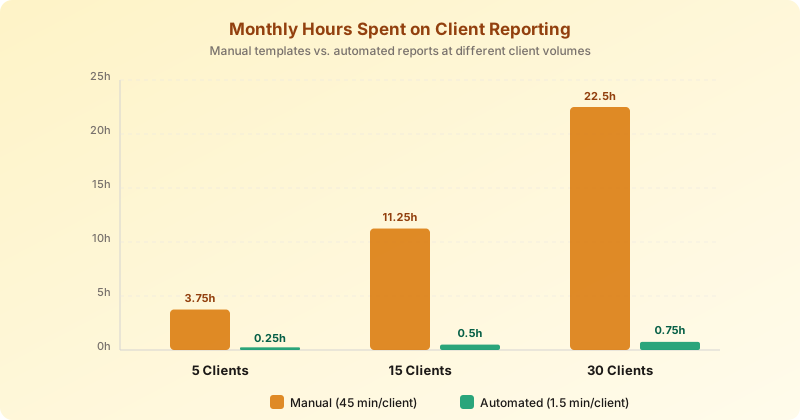
At 5 clients, a manual report takes about 45 minutes each. That's roughly 4 hours per month — manageable. At 15 clients, you're spending 11+ hours on reporting alone. At 30 clients, you either hire someone to do it, cut corners, or stop sending reports entirely. None of those options scale.
Automated reporting pulls the same data your template calls for — uptime, updates, security, performance — directly from the site. No copying from dashboards. No stitching screenshots. No reformatting in Google Docs.
The math on manual reporting: if your average care plan is $99/month and reporting takes 45 minutes per client, you're spending roughly $37 of that $99 on a task that can be fully automated. That's 37% of your revenue on a manual process.
For details on pricing your WordPress care plans to account for reporting costs, see our pricing guide. The short version: build automated reporting into every tier so the cost doesn't scale with your client count.
Ready to stop building reports manually? Try MantleWP free for 3 sites — branded reports, automated delivery, zero hours spent per month.
Wrapping Up
A WordPress client report template needs seven sections: executive summary, uptime, performance, security, SEO snapshot, work completed, and recommendations. Customize the data emphasis by client type — e-commerce, brochure, and membership sites all need different metrics front and center. White-label everything so your brand stays in the conversation.
Start with the structure in this post. Adapt the sections for your agency's services, build three client-type variations, and send the first report this month. The clients who receive structured, branded reports are the ones who renew — and the ones who eventually upgrade to your next tier.
More from the blog
Why Your Clients Don't Read Your WordPress Reports
WordPress client reports that nobody reads are wasted effort. Learn why and the exact format that drives engagement and retention.
Agency GrowthWordPress Agency Recurring Revenue: 5 Models That Scale
WordPress agency recurring revenue comes from five models: care plans, retainers, hosting, performance, and compliance monitoring. Compare margins, stack them, and hit 70% MRR.